Have you ever stopped to think that your Google account might let strangers peek at your personal info? With cyber risks cropping up almost every week, checking your security settings is not just a smart move, it might be a must.
Using Google's built-in Security Checkup tool is a bit like taking a quick look over your shoulder. It helps you see if your password and recovery options are as strong as they need to be.
This guide walks you through each step and shows why every setting matters. Spend just a few minutes now and you can keep your data safe while enjoying your Google tools with peace of mind.
Reviewing the Built-In Security Checkup for Your Google Account
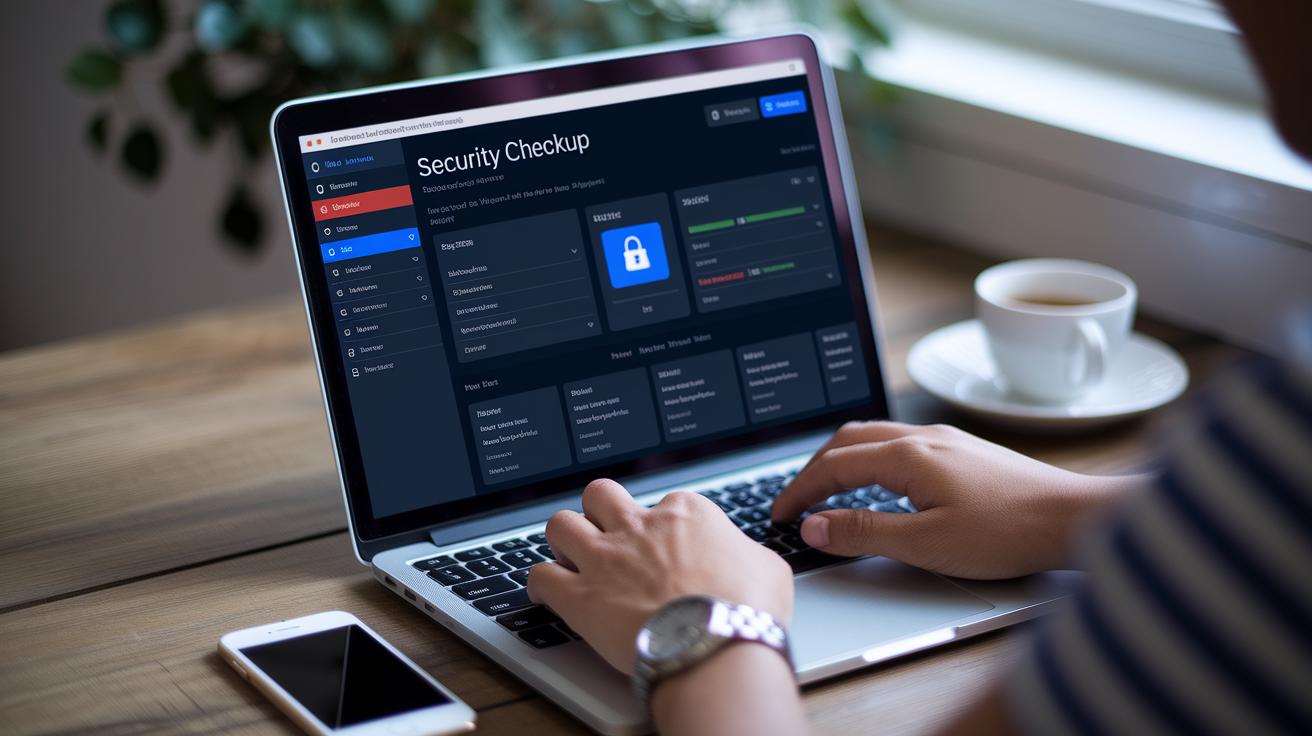
Google’s Security Checkup is your friendly tool to quickly see how strong your account defenses are. It highlights five key areas – how solid your password is, your recovery options, connected apps, recent activity, and two-factor authentication – so you can easily spot what might need an update. Cyber risks pop up almost every week, making it important to give your security settings a regular once-over.
Start by signing into your Google account and heading over to the Security Checkup tool. You’ll immediately see how secure your password appears. If it looks a bit weak, consider switching to something stronger and unique. Next, review your recovery options like your phone number and email. Think of these as your emergency exits if you need to get back into your account quickly.
Scroll down to check out the connected apps list. Remove any apps you don’t recognize or no longer use. You can also glance at your recent activity to catch any sign-ins from unknown devices or unusual locations. And don’t forget to ensure that two-factor authentication is turned on – it adds an extra layer of protection, like having a second lock on your door.
This simple security audit is quick and easy. Each step comes with clear instructions, so you can update your settings without any extra hassle. Taking a few minutes now can provide a big sense of relief, knowing that your valuable data stays safe as you enjoy all the benefits of your Google tools.
Configuring Two-Factor Sign-In in Your Google Account
Two-factor sign-in adds a sturdy extra lock to your Google account. It means that even if someone figures out your password, they still need a second piece of proof to access your account. You can pick from SMS codes, authenticator apps, or security keys, and each option has its own perks and limitations.
SMS-Based Verification
When you opt for SMS verification, Google sends a code straight to your phone. The code arrives in just a few seconds so you can quickly enter it and keep going. But remember, sometimes your carrier might delay the code, and if you lose your phone, there could be a few hiccups. Imagine being in a rush, checking your phone, and seeing that six-digit code pop up just in time, that moment really shows how it works.
Authenticator App Setup
Choosing an authenticator app, like Google Authenticator, means you get a new code every 30 seconds. All you have to do is install the app on your phone and scan the QR code provided in your account settings. This method works even if your phone signal isn't strong because it doesn't rely on your carrier. The code refreshes so fast that even if someone is trying to sneak a peek, they have almost no time to use an old code.
Security Key Enrollment
A security key is a small, physical device that you can plug into your computer or tap on your phone using NFC. Setting it up is quick, and your account only opens when the key is physically present, like having your personal, one-of-a-kind key. Just be sure to keep a backup key safe in case the main one ever goes missing.
| Method | Pros | Cons |
|---|---|---|
| SMS | Easy setup and widely available | Vulnerable to SIM swapping and possible delays |
| Authenticator App | Generates new codes frequently and doesn’t rely on a carrier | Needs a smartphone and some effort to set up |
| Security Key | Offers strong physical security | Can be pricier and requires managing a physical device |
Managing Account Recovery Options and Backup Codes

First, update your recovery phone number and email to build a sturdy safety net for your account. Head over to your Google account settings and look for the recovery options. Enter your mobile number and verify it with a code sent to your phone. It’s like setting up a secret handshake, giving your account extra protection.
Next, add an email you check often as your backup contact. This email helps you get back into your account if you ever get locked out. These simple details are your first line of defense against unauthorized access.
After updating your contacts, create one-time backup codes. Think of these codes as a safety net if you lose access to your devices. Keep them in a secure spot, whether that’s a digital vault or a trusted place at home. Lastly, run a test recovery to make sure everything works smoothly. This simple step confirms that your trusted contacts and backup methods are ready in case of an emergency.
Customizing Privacy and Activity Controls on the Google Dashboard

First, sign into your Google account and open your dashboard. It’s like coming home after a long day and checking that all the doors are locked. You can quickly review recent sign-ins and see which devices have been active. It’s a simple way to make sure everything feels secure.
Next, set up real-time alerts on your account so that if an unknown device tries to log in, you’ll get a quick heads-up. This lets you take swift action if something doesn’t look right. Trust me, these alerts make it much easier to keep an eye on your account.
Then, head over to the privacy control settings on your dashboard. There’s a handy link (https://dealerserve.com?p=266) that explains data protection in plain language. Checking these settings regularly not only boosts your digital safety but keeps your account activity in check.
Here are a few simple checks you can do regularly:
- Review recent devices
- Verify active sessions
- Confirm connected apps
- Check saved passwords
- Audit third-party site access
- Enable login alerts
Doing these tasks regularly is like giving your digital life a little tune-up, ensuring your Google account stays safe and sound.
Securing Devices and App Permissions Across Google Services
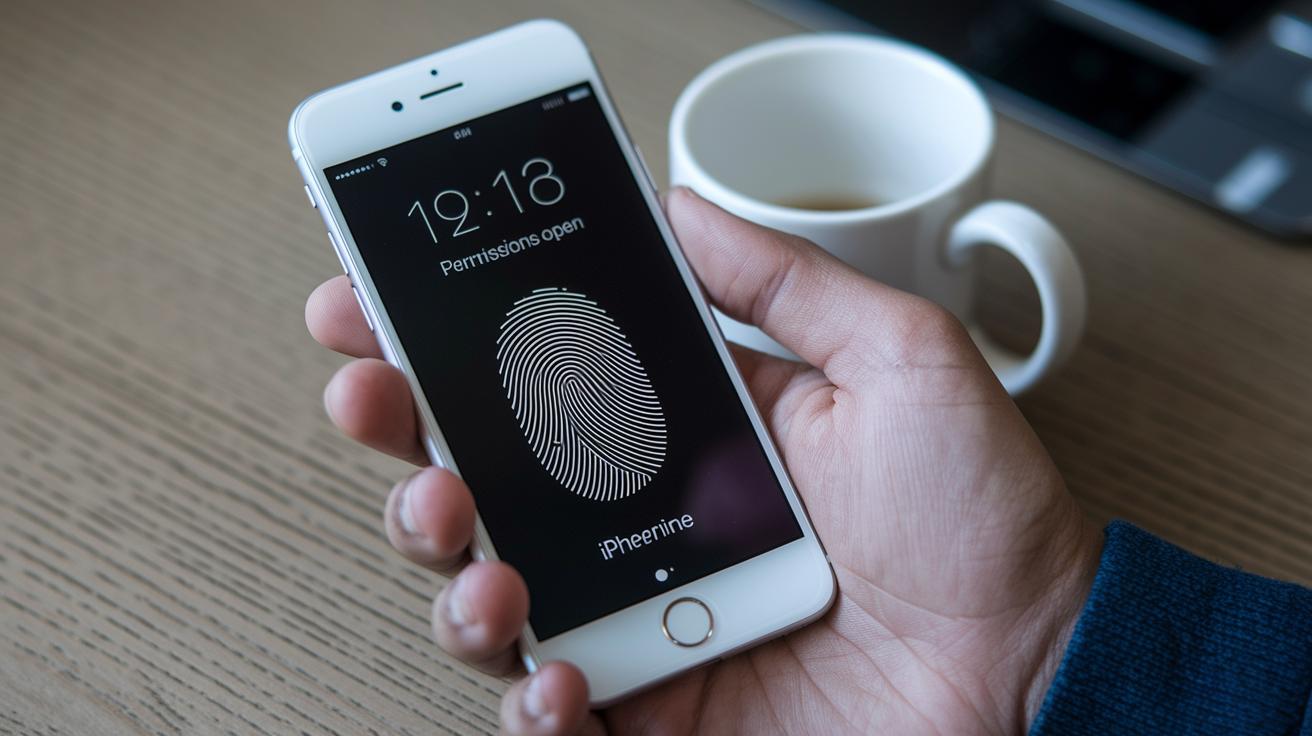
Your mobile device is like your personal fort, and it all begins with a solid screen lock. Use a PIN, pattern, or even your fingerprint to secure your phone. When your screen locks, your Google apps do too, keeping your data as safe as possible.
Take a moment to check the permissions on your apps. Just pop into your settings and see which apps can access your camera, contacts, or location. If an app doesn't really need that information, go ahead and revoke its access. It’s a quick step that can really lower your risk.
Another handy security tool is encryption. This process scrambles your data so only you can understand it. On Android, you can enable encryption in your settings. If you're using an iPhone, rely on its built-in measures that secure your data behind your device password.
And don’t forget about remote lock options. If your phone ever goes missing, this feature lets you disable it from afar. That way, even if someone finds your phone, they won’t be able to get at your personal information.
| Tip | What to Do |
|---|---|
| Screen Lock | Set up a PIN, pattern, or biometric lock |
| App Permissions | Review and adjust settings for camera, contacts, and location |
| Encryption & Remote Lock | Enable encryption and set up remote management |
By taking these simple steps, you're making sure your data stays safe while you enjoy all that Google has to offer. It’s like having a trusted security system right in your pocket.
Advanced Protection and Best Practices Beyond Basic Settings

If you’re at a higher risk, Google has some extra security steps that help keep your account safe. A cybersecurity expert with 15 years of know-how even suggests joining the Advanced Protection Program if you handle tricky or sensitive data. This program uses strong security keys that need a physical device to log in. In short, it makes it a lot harder for someone to steal your digital credentials.
Your account can also adjust its security based on where you are and what you’re doing. Imagine your account automatically tightening up when it spots something unusual, like an extra lock on your door without you even having to do anything. Plus, you’ll get automatic security alerts if something doesn’t look right so you can act before any damage is done.
Behind the scenes, there are smart features working to stop phishing scams and scan for malware in real time. It’s like having a helpful assistant watching your digital door, checking each visitor before letting them in. Regular updates and reviews of your trusted contacts keep your defenses strong, just like taking your car in for regular servicing to keep it running smoothly.
These enhanced security steps are a must if you need serious protection against constant cyber threats.
Final Words
In the action, you learned how to boost your Google account's protection. We covered key ideas like built-in security checkups, two-factor sign-in, and managing recovery options. Small, clear steps help you keep your login details safe. Revisiting these methods, including adjusting your security settings google account, makes future online challenges easier. The guide helps you feel empowered and secure, turning technical steps into everyday actions you can feel good about. Stay positive and keep your financial and digital life safe.
FAQ
How do I open and review my Google account security settings?
Opening your Google account security settings helps you manage your password, recovery options, and connected devices. Simply sign in at myaccount.google.com and you’ll see clear options to update your security preferences.
How do I stop someone from accessing my Google Account?
Stopping unauthorized access means reviewing your security settings, changing your password, enabling two-factor authentication, and monitoring recent activity to catch any unfamiliar sign-ins quickly.
Are my Google Account and Gmail account the same thing?
Your Google Account is your main sign-in for all Google services, including Gmail, Drive, and YouTube. Keeping your security settings updated benefits every connected service.
How can I manage my Google Account, including password and app security?
Managing your Google Account means accessing your settings on myaccount.google.com, where you can update your password, review app permissions, and secure your account with recovery details and verification methods.
