Ever wonder if your Google account is really safe? You never know who might slip in without you noticing. Our guide walks you through checking your account security, just like making sure the keys to your home are secure.
We'll show you how to spot any odd devices, review your recent sign-ins, and update your recovery details, all in simple, easy steps. Take a few minutes now, and you'll be protecting your email, files, and other tools from trouble later.
Google Account Security Checkup: Step-by-Step Guide

Your Google account is the key to many of your favorite tools like Gmail, Drive, YouTube, and even your Android phone. If someone gets into your account, they could mess with all of these. A quick security check can keep your digital world safe. Let’s break it down into 7 simple steps.
-
Review Connected Devices
Take a look at the list of devices in the "Your devices" section. Each entry shows the device type, its last known location, and when it was last used. Think of it like checking the keys to your house. If you spot a device you don’t recognize, remove it right away. -
Inspect Recent Sign-Ins
Check the recent sign-in activity. Look for any strange IP addresses or unusual times. If anything feels off, it could be someone sneaking in without permission. -
Confirm Recovery Options
Make sure your recovery email and phone number are current. This step confirms that you can easily get back into your account if you ever have trouble logging in. -
Control Third-Party Access
Go through the list of apps and websites that have access to your account. Remove any that you no longer use. It’s like clearing out old passes from your wallet that are no longer needed. -
Enable Safe Browsing
Turn on Safe Browsing to get alerts about risky websites and downloads. This extra protection helps keep you away from potential online threats. -
Analyze Saved Passwords
Take a moment to check your saved passwords. Look for any that might be weak or used in more than one place. Updating them regularly makes it harder for intruders to slip in. -
Activate Extra Features
Finally, consider turning on extra security features such as two-step verification and other advanced options. They add another layer of safety to your account.
Stay safe and take a moment to review these steps, it’s like giving your digital life a little tune-up.
Connected Device Audit in Your Google Security Check

When you review your Security Checkup, you'll see a section called "Your devices." This list shows the type of each device, where it was last used, and the last time it was active. Think of it like checking your front door to see who has a key. If you see a smartphone, laptop, or any other device you don’t normally use, it’s a signal to remove it right away. Imagine spotting a tablet you never even owned, taking it off the list helps keep your account safe.
It’s a good habit to check this list regularly. Treat it like a tune-up for your digital life. Always look at when each device was last active. If you notice one with old or unfamiliar activity, that’s a clue that you may want to remove it.
Below is an example table to show you how your device list might appear:
| Device | Last Activity | Action |
|---|---|---|
| Smartphone | Today, 10:00 AM | Keep |
| Laptop | Yesterday, 8:00 PM | Keep |
| Tablet | 2 Days Ago | Review |
| Smartwatch | Last Week | Remove |
| Desktop | Last Month | Review |
Spending a few minutes on this helps keep your account secure and in good shape.
Recent Sign-In Activity Review with Your Google Security Check

Think of your account activity log like a guest book that notes every visit. It records details such as sign-in IP addresses, device types, and the time of access. Imagine flipping through this book and spotting a visitor you don't recognize – maybe a login from an unfamiliar device or an IP address from another country. If you notice a login at an odd hour, it could be a hint that something isn’t right.
Also, don’t rely solely on the usual login details. Take a moment to check the browser information or user agent data when you can. If you see a sign-in from a browser you rarely use, it might be a good idea to double-check your account settings. These little clues can uncover changes that might otherwise fly under the radar. Regularly reviewing these signs can help protect your data and keep potential misuse at bay.
Update Recovery Options & Two-Step Verification in Security Check
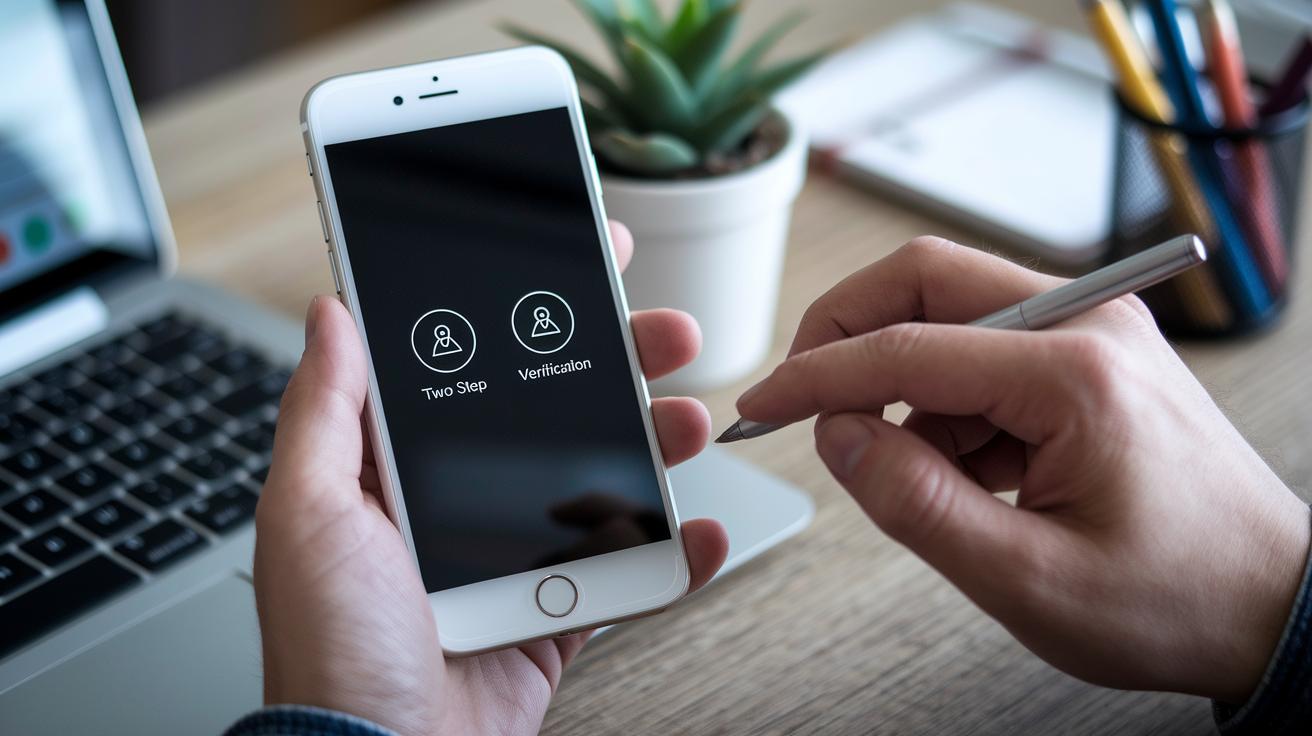
Start by taking a moment to refresh your recovery options. Make sure your recovery email and phone number are up to date, like having that spare key handy if you ever find yourself locked out. Simply enter your email when prompted and check your inbox for a verification code to confirm it's correct.
Next, set up two-step verification, which adds an extra layer of security to your account. Pick the method that suits you best, you can receive a text message code, use an authenticator app, or even add a physical security key. Don’t forget to generate backup codes too. It’s a helpful safety net if your primary method isn’t available, much like an extra checkpoint that stops unwelcome access.
Finally, verify your alternative methods in line with current data protection rules, as explained here: personal data gdpr. This step brings everything together, ensuring you’re well-prepared against lockouts while keeping your account secure.
Third-Party App & Site Access Control in Your Google Account Security Check
Take a moment to look over the list of third-party apps and websites linked to your Google account. Check each one to see what permissions they have and when you last used them. If an app looks outdated or seems out of place, remove its permissions right away. This simple step helps lower the chance of any unauthorized access.
Next, try these quick tips for a more complete security review:
Staying alert to unfamiliar or unused services makes your digital space safer. Remember, a little extra attention now can keep your account secure down the road.
Safe Browsing & Robust Password Analysis via Security Check

Your browser has a built-in Safe Browsing feature that helps shield you from phishing websites and dangerous downloads. It alerts you when you try to visit sites that may harm your device. Earlier in this guide, we explained how to enable this setting so it stays active for your protection. Imagine you try to download a file from a sketchy website and suddenly see a warning that stops you in your tracks.
The Password Checkup tool is like a quick health check for your online accounts. It scans for weak, reused, or compromised passwords so you know when it’s time for an update. Picture it like finding an old, overused password on several sites, this tool gives you the heads up so you can make your security stronger.
Advanced Security Features After Your Google Security Check

After you complete your basic security check, you can step into a world of extra safety for your Google account. One great option is the Advanced Protection Program. It uses special security keys, which act like a digital lock, letting only verified devices in. These keys block phishing attempts and other tricks by ensuring that only trusted devices get access. It really adds another layer of safety.
Next, you have tools that help manage digital risks from every angle. Google provides customizable security alerts and login challenges that work like a real-time safety scan. If an unexpected login occurs, you get an immediate warning so you can address the issue right away. This keeps you informed about every access point and helps you adjust settings easily. It’s like having a friendly security guard always looking out for you.
Finally, advanced features include audits that check all app and third-party permissions. In line with the latest guidelines from the data protection act 2018, these audits make sure your permissions match today's privacy needs. They act as a final check against unauthorized changes. This extra review gives you better control over your digital world and strengthens your online defenses.
Final Words
In the action, we broke down how to perform your Google account security check with a simple seven-step process. You learned to review connected devices, check sign-ins, update recovery options, manage third-party apps, and boost safety with advanced steps. Each stage helps you build a solid foundation for secure investing and financial planning. Embrace these best practices and use the security check google account to keep your digital accesses safe. Stay confident and proactive, you’re on track for a secure financial future.
FAQ
How does the Google security check verify your identity?
The security check verifies your identity by reviewing login activity and backup settings, confirming only you can access your account.
How can I manage and secure my Google Account?
Managing your Google Account means reviewing security settings, connected devices, and recovery options so you stay in control of your data and access.
How does the Google security check use your phone number?
The security check uses your phone number for account recovery and to send two-step verification codes, adding an extra layer of protection against unauthorized access.
How does the security check review your Google account password?
The security check reviews your password by identifying weak or reused ones and offering update links, helping you strengthen your account security.
How does a Google security check update recovery options?
The security check prompts you to confirm or update your recovery email and phone number, ensuring you can regain access if locked out.
What does signing in at myaccount.google.com do?
Signing in at myaccount.google.com gives you a control panel to review security settings, manage devices, and adjust privacy preferences for enhanced account security.
What is the Google Security Checkup?
The Security Checkup is a quick tool that reviews devices, recent sign-ins, recovery options, and third-party access to help keep your account secure.
Is the Google Security Checkup a legitimate tool?
The Google Security Checkup is a trusted, official tool provided by Google that gives you real-time insights into your account activity, protecting you from unauthorized access.
How do you perform a security check on a Google Account?
You perform a security check by logging into your account and reviewing device activity, sign-in events, recovery details, and third-party app permissions via the Security Checkup.
What factors trigger a Google security check?
A security check is triggered by unfamiliar sign-in attempts or unusual device activity, alerting you to any potential unauthorized access.
How can you identify a genuine Google security alert?
A genuine Google security alert includes specific details like device type, location, and sign-in time, helping you verify that the alert is real before taking action.
