Ever wonder why some Google accounts stay safe while others get hacked? Think of your account as a precious treasure chest that needs a strong lock. This guide shows you simple steps like setting up a solid password, turning on extra sign-in checks, and keeping track of which devices have access.
By following these easy tips, you'll keep unwanted visitors away and feel at ease every time you sign in. Read on to learn how to make your Google account as secure as possible today.
Step-by-Step Guide to Managing Google Account Security Settings

-
First, set a strong password. Pick a unique password with at least 12 characters. Mix in big and small letters, numbers, and common symbols so nobody can guess it easily.
-
Next, turn on two-factor authentication. This means you'll add a second check, like an authenticator app or SMS codes. Even if someone gets your password, they won't get in without this extra step.
-
Then, update your recovery options. Keep your backup email and phone number current so you can quickly get back into your account if you ever forget your password.
-
After that, do a security checkup. Google offers simple tools to show you connected devices, recent logins, and what apps have permissions. This helps you spot any tricky risks before they become problems.
-
Also, review connected third-party apps. Every now and then, look at the apps that can access your account and remove any that you don't use. This cuts down on chances for unauthorized activity.
-
Finally, monitor devices that are signed in. Check the list of devices and sign out from any you don’t recognize. This sends unknown access immediately packing.
Each of these steps adds a new layer of defense for your Google account. With billions of people around the world relying on Google, taking these steps helps keep your digital life safe. Isn't it nice to know that every sign-in has a strong shield protecting it?
Strengthen Passwords and Secure Gmail Credentials
Start by creating a strong password that uses at least 12 characters. Mix in uppercase and lowercase letters, numbers, and special symbols. For example, you might have a password like "tncZEuZE-DuR6eqHch^G_N@." Remember, using the same password on other websites can make it easier for someone to break in, so try to keep each one unique.
Changing your Google account password is really simple. Just head over to Security, then Signing in to Google, and click on the password option. Follow the on-screen steps to set up your new password. Doing this every so often adds an extra layer of security, especially if you ever notice any odd activity.
Using a password manager can make your life easier. These apps help you store different passwords for all your accounts and even create strong ones for you. Whether it's Google Password Manager, LastPass, or 1Password, having a manager means you won’t have to remember every little detail. In the end, taking small steps like these helps keep both your personal and work data safe.
Enable Two-Factor Authentication at Google

Two-factor authentication, or 2FA, adds an extra lock on your Google account to keep it safe. Start by logging in and going to Security > Signing in to Google > 2-Step Verification. Then you can choose the method that works best for you.
- You can use an authenticator app like Google Authenticator, Authy, or Microsoft Authenticator. Open the app, scan the QR code shown, and type in the six-digit code it gives you.
- You might pick SMS verification. Just enter your mobile number, and Google will send you a one-time code each time you sign in.
- Or, if you prefer a physical device, set up a security key. Simply plug it into your computer or tap it on your phone and follow the on-screen directions.
Make sure to generate backup codes during setup and keep them somewhere safe, like a secure offline spot. These codes help you get back into your account if you lose your main 2FA device. It’s also a good idea to update your verification methods periodically, whether you're updating your app settings or getting new backup codes when your device’s software is refreshed. This way, your account stays protected against unauthorized access.
Run Google Security Checkup and Safety Dashboard
Google’s Security Checkup is like having a friendly guide help you secure your account. It walks you through steps such as checking which devices are active, updating your backup email and phone details, and reviewing any apps that have access to your account. As you go through the process, the Safety Dashboard gives you a quick heads-up if something seems off, like an unrecognized sign-in or old security settings.
Here’s what to do:
- Check your connected devices to see all active sessions.
- Review your recovery options to make sure your backup email and phone number are up to date.
- Look over third-party app access and remove any permissions that feel unfamiliar.
- Confirm your two-step verification is on for extra protection.
- Keep an eye on Safety Dashboard alerts. For example, if you see a “Suspicious sign-in detected on your account” alert, it’s your signal to review and remove any unverified device right away.
Each step gives you clear instructions, almost like a checklist from a trusted friend, ensuring you keep your account settings fresh and secure.
Update Account Recovery Methods and Backup Options
Keeping your recovery details current is super important in case you ever get locked out of your account. Just sign in to your Google account, head over to Security, and look for the section called Ways we can verify it's you.
First, update your recovery email. Choose an email address different from your main one, one you check every day.
Next, add or update your phone number with one that gets text messages fast. If you can, set up security questions too. For instance, choose a question like "What was your favorite childhood game?" and pick answers only you would know.
You might also want to add a trusted contact, like a friend’s email, to help out if you ever lose access.
Keep these recovery methods up to date. This way, you'll be combining your main recovery options with extra backups to keep your account secure.
| Recovery Option | Best Practice |
|---|---|
| Recovery Email | Use an email not linked to your main account and check it often. |
| Phone Number | Add a phone that receives texts quickly. |
| Security Questions | Set up questions with answers only you know (like “What was your favorite childhood game?”). |
| Trusted Contacts | Designate a contact who can help if you lose access. |
Make it a habit to review these recovery methods regularly so you always feel secure with your account.
Control Third-Party App Access and Permissions

Take a moment to check which third-party apps can access your account. First, log in to your Google account and navigate to Security > Third-party apps with account access. This page displays every app that can connect with your Google data. Some apps might just view your contacts, while others can access everything. Ask yourself, "Do I really need this app to have this level of access?"
Examine each app carefully. If you see an app you don't recognize or no longer use, remove its access immediately to keep your account safe.
Here's a simple example of what to look for:
| App Name | Recommended Action |
|---|---|
| Example App 1 | Revoke access if unused |
| Example App 2 | Set to limited access |
Start by reviewing the permissions each app has. If an app only needs to read your contacts, adjust its settings accordingly instead of giving it full access. This small step will help protect your Google account while still letting you use the apps you trust.
Monitor Sign-In Activity and Manage Signed-In Devices
Sign in to your Google account and navigate to the Security section. Then click on Your devices to see a list that tells you the type of each device, its operating system, where it’s been used, and when it was last signed in. For example, you might spot an entry like "Windows PC – New York – Last active 10 minutes ago."
Take a good look at each entry. Notice details such as whether it is a laptop, phone, or tablet; whether it runs Windows, macOS, Android, or another system; plus its location and last active time. One entry might read: "MacBook – macOS – Los Angeles – Last active 20 minutes ago."
If you find a device or location that seems odd or unfamiliar, click on it and select Sign out. This stops that session right away, keeping your account safe.
For the devices you recognize, mark them as trusted, just like sorting out known friends from strangers.
Checking this list regularly is a simple way to help keep your account secure.
Manage Google Account Security: Feel Secure Today
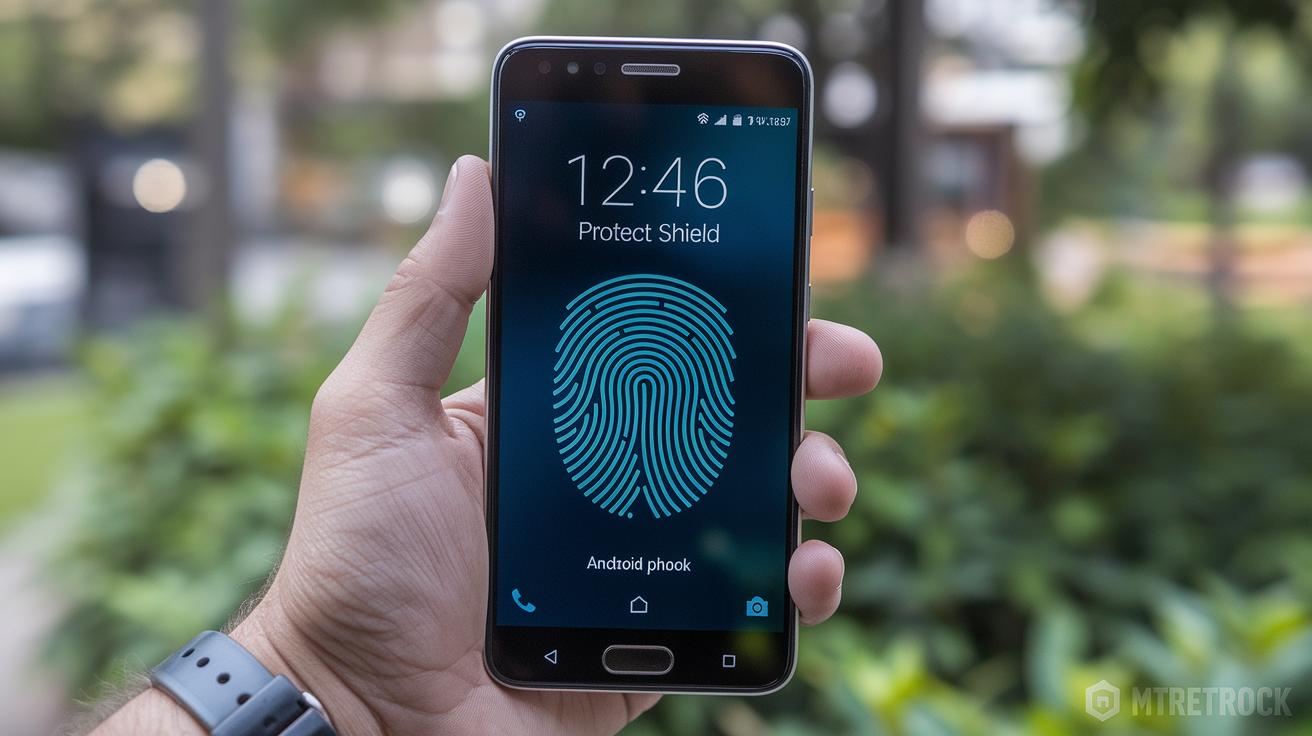
Make sure you update your Android operating system often. These updates come with fresh security fixes that help block potential gaps that could let strangers in.
After updating, set up a strong screen lock right away. You can choose a PIN, a pattern, or even use your fingerprint or face recognition. Using your fingerprint is like having your own personal key that only you own.
Turn on Google Play Protect. This built-in service regularly scans your downloads and app installations, alerting you if anything looks fishy.
Also, enable Find My Device. This useful tool lets you remotely lock or erase your phone if it ever goes missing, keeping your personal data safe.
Don’t forget to review your Google app login logs in your account settings. Checking these logs helps you spot any unexpected sign-ins from unfamiliar locations or devices.
- Update your Android OS
- Set up secure lock options
- Activate Google Play Protect
- Configure Find My Device
- Analyze login logs
Each step will help keep your Google account safe on your Android device.
Final Words
In the action, this guide outlined hands-on steps for boosting your online safety. It walked through creating a strong password, activating two-factor authentication, running a security checkup, updating recovery options, reviewing app permissions, and checking active devices.
These steps help you manage google account security while giving you more confidence in your day-to-day digital life. Taking these practical steps today can lead to a safer, more secure tomorrow.
FAQ
How do I manage my Google account security settings, including password, email, phone number, and app permissions?
Managing your Google security settings means updating your password, recovery email, phone number, and app permissions. Simply sign in, go to the Security section, and review each option for secure access.
How do I update my Google account security on my Android device?
Updating Google security on Android involves reviewing your device’s lock screen, enabling Google Play Protect, and checking sign-in settings through your Google Account. This keeps your device and data protected.
How can I tell if a Google security alert is real?
Verifying a real Google security alert means checking for notifications or emails directly from Google. Genuine alerts provide clear details about sign-in attempts or suspicious actions within your account.
Where do I find the option to manage my Google Account?
Finding the manage account option is easy. Click your profile icon, select “Manage your Google Account,” and you’ll be taken to the settings page where you can adjust security and recovery details.
Are my Google Account and Gmail account the same thing?
Your Gmail account is part of your Google Account. In other words, while Gmail is an email service, it functions within your broader Google account that manages all your Google services.
