Ever wonder if your Google account feels safe enough? It is the key to all your emails, files, and more, so extra protection is really important.
In this post, I'll share some quick and simple steps to secure your digital life. Think of it like locking your front door at home; a few small fixes now can give you big peace of mind later.
Let’s go over easy tips that boost your account safety without making things complicated.
Fundamental Google Account Security Steps
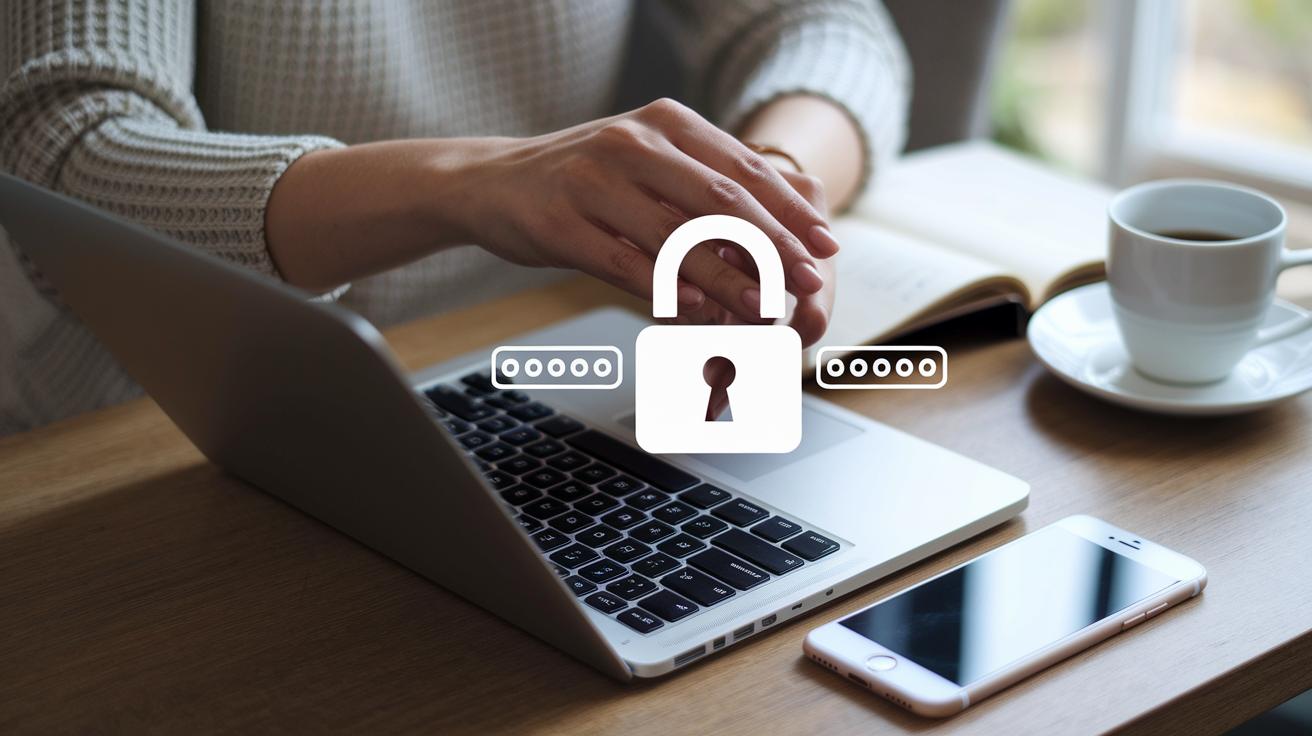
Your Google account is like the master key to your digital world. It holds everything from your emails to your files, and with billions of devices and millions of users in play, a little extra care goes a long way. Think of protecting your Google account like making sure you lock up your home at night.
Start by creating a strong, unique password. It should be at least 12 characters long. For example, instead of a common password like "password123," try turning it into something like "P@ssw0rd#2023." This simple shift makes it much harder for someone to break in.
Next, run a Google security checkup. This handy tool shows you all the devices that have logged into your account, just like checking that every door and window is securely locked. If you spot a device you don't recognize, remove it immediately.
Then, take a moment to review the permissions you’ve granted to third-party apps. Ask yourself, “Do I really need this app accessing my data?” Removing old or unused permissions can help prevent potential risks.
Here’s a quick reminder of the steps:
| Step | Action |
|---|---|
| Create a strong password | At least 12 characters; transform common words into unique codes |
| Run a security checkup | Review device activity and remove any unfamiliar logins |
| Review app permissions | Keep only trusted apps enabled |
| Monitor account activity | Stay updated on recent logins |
Taking these few steps now makes your digital life much safer down the road. So, why not start today? It's a simple way to keep your information secure and give yourself peace of mind.
Implementing Two-Factor and Multi-Factor Authentication for Google Account Security

If you're looking to protect your Google account, setting up two-factor authentication is a great idea. When you turn it on, you'll use not only your regular password but also a one-time code from apps like Google Authenticator, Authy, or Microsoft Authenticator. This extra step means that even if someone guesses your password, they still can’t get in without the additional code. You can also choose security keys like USB or NFC devices or even a Google Prompt that shows up on your phone.
Here are the main ways you can secure your account with multi-factor authentication:
- Authenticator apps: These apps send a one-time code straight to your mobile device.
- SMS verification: You receive a code via text message (although this is a bit less secure than using an app).
- Hardware security keys: You plug in a USB or tap an NFC key for a physical check.
- Google Prompt: A prompt appears on your mobile device that you simply approve.
Setting these up is really simple. Just log in to your Google account, head over to the security settings, and choose the method you prefer. Follow the steps on screen and take a quick test to ensure it’s working. With this extra layer of protection, your account becomes a lot tougher for unauthorized users to break into.
Monitoring Login Activity and Preventing Unauthorized Access on Google Accounts

Think of checking your login activity like making sure your house is locked up at night. Google’s Security Checkup shows you which devices have signed into your account over the past 28 days. It tells you the type of device, when it was last active, and where it was used so you can quickly spot anything unfamiliar.
If you see a session you don’t recognize or no longer need, simply remove it. You can also set up alerts to let you know if any unusual sign-ins occur, giving you a chance to act fast. And if you’re tech-savvy, you can use the Google Admin SDK API to track activity automatically.
| Device | Last Active | Location | Status |
|---|---|---|---|
| Laptop A | 2023-10-01 | New York, USA | Active |
| Smartphone X | 2023-10-03 | Los Angeles, USA | Active |
| Tablet Z | 2023-09-29 | Chicago, USA | Inactive |
| Desktop B | 2023-10-02 | Miami, USA | Active |
- Think of it as checking your home security.
- You’ll see the last active date, device type, and location all in one place.
- If you spot any unknown sessions, remove them quickly, like re-locking a door.
Configuring Recovery Options and Credential Recovery Workflows in Google Account Security

It’s important to set up extra ways to get into your account if something goes wrong. Adding a backup email and phone number lets you receive quick codes when you’re locked out. I suggest checking these details every six months just to make sure everything is still current.
Google even offers backup codes you can print out. These codes work offline and can really save you if you lose access to your recovery phone or email. Keep them safe, like in a secure digital file or a locked drawer, so you can grab them when needed.
Here’s a simple guide to managing your recovery options:
| Step | What to Do |
|---|---|
| 1 | Use a backup email that’s different from your main one. For example, try myrecovery@example.com. |
| 2 | Add a phone number to receive codes quickly when doing a password reset. |
| 3 | Download or print your backup codes and store them in a safe spot. |
| 4 | Review your recovery contacts regularly to make sure they haven’t changed. |
By keeping an eye on these recovery options, you lower the risk of being permanently locked out. It’s a smart way to protect your account and quickly regain access if you ever forget your password or if your credentials are compromised.
Customizing Security Alerts and Privacy Controls in Google Account Security

Google will email or text you when it notices something out of the ordinary, like a login from a new device or an unexpected location. This quick alert is like a friendly nudge, letting you know that something might be off so you can take action right away.
In your Account Security Settings, you can decide exactly where you want to receive these alerts. You might choose emails or simple text messages, whatever fits best with your daily routine. Doing this helps you feel more secure and in complete control of your account.
It’s also a good idea to check which third-party apps have access to your account. If there's an app or browser extension you no longer use, removing it is a smart move. By limiting what information these services can see, you build a stronger shield around your personal data.
Here are a few steps you can take:
- Check and adjust alert channels for unusual activity.
- Review third-party app permissions regularly.
- Limit data sharing to only those apps you trust.
- Tighten permission settings on connected services.
Following these simple steps makes managing your alerts and privacy settings much easier. It gives you a clear view of your account security and helps protect you against potential breaches.
Advanced Protection and Encrypted Connection Protocols for Google Account Security

Google’s Advanced Protection Program is built for people who need extra security, like journalists, activists, or anyone who handles sensitive work. It uses two physical security keys that work together to block any apps that aren’t approved. Think about it like using a USB key and an NFC device at the same time. This extra step keeps unwanted access at bay.
Every time you connect to Google services, your browser sends data over HTTPS/TLS. That means your information is locked up safely during its journey, sort of like a secure tunnel for your online activity. It’s important to keep your operating system and browser updated too. These updates make sure they recognize the newest encryption methods and security fixes.
Here are some best practices to keep your account safe:
- Sign up for the Advanced Protection Program if you’re at high risk.
- Regularly update your operating system and browser so they work with the latest security standards.
- Check and set up secure settings in your account.
- Review the apps connected to your account to limit access.
If you need to follow U.S. data protection rules, you can learn more on the data protection act USA page here: https://dealerserve.com?p=384. All these steps work together to create a strong defense for your digital identity.
Final Words
In the action, we covered key steps to strengthen your personal finance management with smart investing principles. We discussed secure login methods, setting up two-factor options, and regularly reviewing login activity. We also explored recovery options and tailoring alerts to your comfort. Each part helps keep your data safe, particularly with robust google account security practices. Staying informed and proactive brings true confidence in your financial journey. Keep these measures in place and move forward with optimism.
FAQ
How do I check my Google Account security?
Checking your Google Account security means visiting myaccount.google.com and using the Security Checkup. It reviews devices, sign-in activity, and recovery options to help confirm your account stays protected.
How do I know if my Google Account has been hacked or not?
Identifying a hacked Google Account involves looking for unusual sign-ins, unauthorized changes to settings, or unexpected security alerts in your activity history that do not match your recent use.
How to tell if a Google security alert is real?
Determining if a Google security alert is real starts with reviewing the details in your account activity and location data provided in the alert. This helps you decide if the event matches your recent access patterns.
How do I check my Google Account for viruses?
Checking your Google Account for viruses involves scanning your connected devices with updated antivirus software and reviewing any suspicious sign-in activity via the Security Checkup dashboard.
