Are you really keeping your personal data safe on your Apple account? With digital threats on the rise, leaving your account unprotected is a risk you simply can’t afford.
Let’s break it down. First, use a strong password, it’s like choosing a robust lock for your front door. Next, add two-factor authentication. This extra step uses your phone or an app to verify your identity, giving you another layer of protection. Lastly, make sure you check your device settings regularly to spot any unusual activity.
By following these easy steps, you’ll add more security to your digital space without a lot of extra fuss. And if you ever wonder how to boost your online safety, just remember: a few secret ingredients can go a long way.
Quick Steps to Strengthen Your Apple Account Security

Locking down your Apple account is easier than you might think. It means protecting your personal info and making sure you can access your devices without a hitch. When your account is secure, you can use cool features like Apple Pay and iCloud knowing you're covered.
-
Create a strong, unique Apple ID password
Start by creating a password that’s hard for anyone else to guess. Mix uppercase and lowercase letters, numbers, and symbols. Think of it like adding the secret ingredients to your favorite recipe. For example, try something like "S3cur3P@ssw0rd!" to give your account a robust shield. -
Enable two-factor authentication in Settings
Next, turn on two-factor authentication. This means every time you sign in on a new device, you’ll need a special six-digit code from one of your trusted gadgets. It’s like putting an extra lock on your door, ensuring that only you can get in. -
Set up a Recovery Key in your Apple ID account
Now, generate a 28-character Recovery Key. This key is your offline backup to reset your password if you ever need it. Keep this key safe, just like you would store important documents securely. -
Configure device passcodes and biometrics
Make sure your devices have their own passcodes and, if possible, use features like Face ID or Touch ID. This extra step acts as another barrier, keeping your data safe while making it easy for you to use handy functions like autofill. -
Review trusted devices and remove unknown ones
Take a moment to regularly check which devices are linked to your account. If you see any unfamiliar devices, remove them. This helps stop any unwanted attempts to access your verification codes or iCloud services. -
Install the latest iOS/macOS updates
Finally, keep your software up to date. Installing the newest updates means you get essential security fixes that keep vulnerabilities at bay.
By checking and updating your settings often, you'll be ready for new challenges and keep your digital world secure. Stay proactive and protect your account like you would lock your front door.
Configuring Two-Factor Authentication for Apple Account Security

Two-factor authentication adds a smart extra step to your Apple ID login by combining your password with a quick six-digit code. Every time you sign into your account on a new device, your trusted gadget sends a special code that acts like an extra lock on your door. This extra check helps keep your details safe by making sure only you have access. Plus, these codes are encrypted while they travel, keeping your sensitive info private. Let's walk through how to set this up on your iPhone, iPad, or Mac.
On iPhone and iPad
Open the Settings app and tap your name at the top. Next, head over to Password & Security and tap the option to Turn On Two-Factor Authentication. Follow the on-screen prompts to verify your phone number. Think of it like adding a second lock to your front door; your trusted phone sends you a unique six-digit code every time you try to sign in from a new device. This little extra step gives you peace of mind with a simple tap.
On Mac
Click the Apple menu and select System Settings. Then, find Password & Security and hit Enable Two-Factor Authentication. If you need to update your trusted numbers, you can do that through the Apple ID portal. With this in place, every time you try to log in from another device, you'll receive a secure, encrypted code that confirms it's really you. This added layer makes your account strong and truly secure.
apple account security: Shield Your Data Now
Keep a close eye on the devices you trust and the recovery options you set up for your Apple account. When you check your devices in Apple ID > Devices, you can spot any items you don’t recognize and remove them. This helps make sure that only your familiar devices can send you verification codes and sign you in if you ever get locked out.
You can boost your account security by using a 28-character Recovery Key or by naming a Legacy Contact. The Recovery Key acts like an offline backup to reset your password, but remember that it turns off Apple’s usual reset method, so handle it carefully. Meanwhile, a Legacy Contact lets you choose someone who can help regain access to your account if needed. With these measures in place, you have multiple backup ways to log back in safely.
| Recovery Method | Description |
|---|---|
| Recovery Key | Offline reset using a 28-character code; it disables the standard recovery process |
| Trusted Device Sign-in | Use a logged-in iPhone, iPad, or Mac to approve sign-ins |
| Legacy Contact | Pick someone who can request access to your account if needed |
Keep your Recovery Key in a secure spot like a hardware safe, and check your list of trusted devices often to remove any that look unfamiliar. These simple steps offer peace of mind, so if you ever have trouble signing in, you’ll have a fast and reliable way back into your account.
apple account security: Shield Your Data Now

Apple lets you know about any changes to your account by sending alerts through email, SMS, or push notifications. These messages work like a personal alarm, telling you right away if something isn’t right. Real alerts come from apple.com addresses and show the actual names of your devices. This way, you can easily spot a fake message that might be trying to trick you.
If you get an alert that you didn’t expect, don’t click on any links. Instead, go directly to appleid.apple.com in your browser to check your account details. Look over your device names and settings on those you trust. If you see any changes you didn’t make, sign in right away, change your password, and update your security settings. Acting fast is really important to stop unauthorized access and keep your data safe.
Troubleshooting Locked Accounts and Credential Issues in Apple Account Security
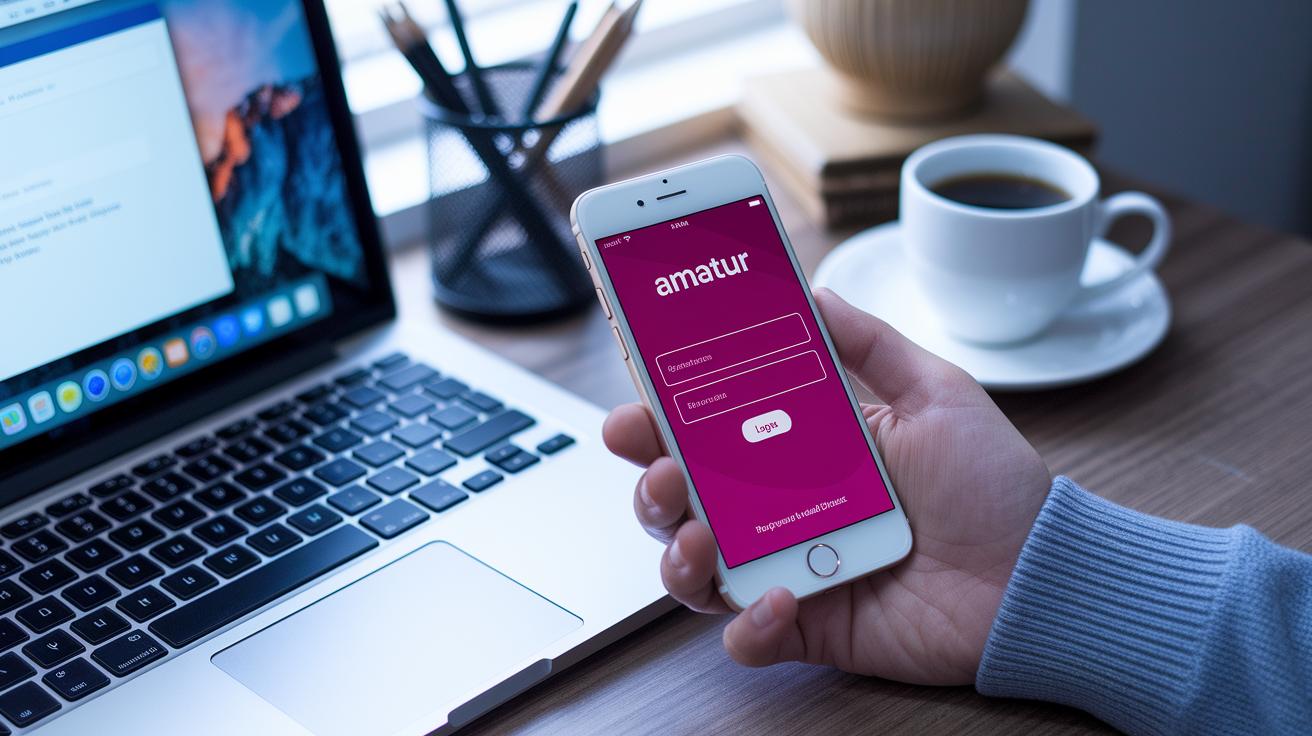
If you ever get locked out or run into issues with your login details, it can feel really stressful, especially when you need access fast. The simplest fix is to reset your password. Visit appleid.apple.com and make sure two-factor authentication is set up. You might need to enter your 28-character Recovery Key or follow on-screen directions after confirming your trusted phone numbers. This straightforward process helps you regain control while keeping unwanted users out.
Web-Based Recovery
Start by going to the Apple ID website to reset your password. As you follow the instructions, be prepared to enter your Recovery Key if it asks. This key acts like a backup tool when other recovery methods don’t work. If you’ve forgotten your password, you’ll receive a code on your trusted devices or phone numbers to verify it’s really you. Think of it as a secure handshake between you and your account that stops unauthorized access.
Contacting Apple Support
If you can’t get in using the website, the next step is to reach out to Apple Support. Use the phone numbers or live chat options available at apple.com/support to connect with a real support agent. They may ask you simple questions or even your device’s serial number to confirm your identity. This ensures you’re talking with genuine help who can guide you through unlocking your account.
Don't forget to keep your list of trusted devices updated and review your security questions and recovery options from time to time.
apple account security: Shield Your Data Now

If you already have a strong password, it’s smart to change it every 6 to 12 months or whenever something feels off with your account. Think of it like renewing your membership, you keep your access smooth and your data safe. For example, if you’ve been using something like "Ex@mple123," updating it before any sketchy activity kicks in can really make a difference.
It’s also best to store your passwords in a secure system instead of trying to remember them or jotting them down on paper. Using tools like app-specific passwords for other services and iCloud Keychain keeps your details safe and ready to use when you need to get back into your account quickly.
apple account security: Shield Your Data Now

Sometimes, bad actors try to trick you by mimicking legitimate Apple messages to steal your login details. They might send out emails or texts that look like routine password resets or verification prompts. If you look closely, you'll usually spot little signs, like a slightly off email address, that show something isn’t right. So, always be extra careful with unexpected texts or emails asking for your info.
If you receive a security message that seems odd, take a moment to hover over any links to see where they really lead. Real Apple emails end with @apple.com, which is a good signal of authenticity. Instead of tapping on a link, type appleid.apple.com directly into your browser. This little step can help you dodge fake sites designed to steal your personal details.
If you ever feel doubtful about a message, don’t enter anything. Instead, forward the suspicious message to reportphishing@apple.com and watch out for any unusual security alerts. It’s also smart to check your account settings and activity regularly. This extra step gives you peace of mind knowing your information stays secure and just for you.
Final Words
In the action, this article offered a clear, step-by-step guide to protecting your Apple account. We covered everything from creating a strong password and setting up two-factor authentication to managing trusted devices and recovery options. Each tip is designed to boost your confidence while working with financial tools and market insights.
Embracing these smart measures and keeping up with updates helps improve apple account security. It leaves you feeling ready to take on financial decisions with a secure shoulder under your back.
FAQ
What is an Apple account security check?
The Apple account security check confirms that your account’s sign-in methods, passwords, and associated devices meet the safety requirements to protect your personal data.
What does Apple account security یعنی چی mean?
The phrase means that your Apple account is secured using strong passwords, two-factor authentication, and verification measures to help keep your information safe.
What does the Apple account security alert text indicate?
The Apple account security alert text indicates that a change or unfamiliar sign-in has occurred, prompting you to verify or secure your account immediately.
What is Apple ID login?
The Apple ID login refers to your account access point for all Apple services, requiring your username and password, with two-factor authentication adding extra protection.
What is meant by Apple account security number?
The term typically refers to the verification or recovery codes used to confirm your identity during account sign-ins, ensuring that only you access your account.
What are Apple ID security settings?
The Apple ID security settings include options to manage your password, two-factor authentication, trusted devices, and recovery keys, all designed to strengthen account security.
What is the Apple account security email?
The Apple account security email is the contact address linked to your account where security notifications, alerts, and verification messages are sent.
What is the Apple account security phone number?
The Apple account security phone number is used to receive verification codes and notifications, ensuring that only authorized attempts to access your account are approved.
Is the Apple Security warning real?
The Apple security warning is real when received from recognized apple.com domains. Always verify by signing in directly at appleid.apple.com rather than clicking on suspicious links.
How do I check my Apple account security?
The Apple account security can be reviewed by logging into your Apple ID settings, checking trusted devices, and reviewing any alerts or security notifications from Apple.
How do I check if my Apple ID is being used by someone else?
The Apple ID usage is monitored by reviewing your account’s sign-in history and trusted devices; unfamiliar entries could indicate unauthorized use.
Will Apple notify you if you’re being hacked?
The Apple account is designed to notify you via email, SMS, or push notifications when it detects unusual activity, helping you respond quickly to any potential hacking attempts.
